
Installing Ucommerce 9.7 on Sitefinity 15.4
How to install Ucommerce 9.7 on a fresh Sitefinity 15.4 site, including the Lucene 4.8 patch and the J2N 2.1.0 hint path fix that stops installs failing.
So we have worked with Ucommerce 9.7 and Sitefinity for some time. With each update there are new issues to face. This post leads on from Issues with Sitefinity 15.3 and Ucommerce 9 in which we explained how you can use our Lucene patch to allow Ucommerce's scratch indexer to play nice with the new Lucene 4.8 version that Sitefinity ships with from 15.3 onwards.
That post was more aimed at upgrading an existing site, so this article outlines how to start from scratch.
The crux of the issue with Ucommerce 9.7 and newer versions of Sitefinity is that the Lucene index version shipped is now 4.8, which is a major version over what Ucommerce 9.7 requires and it is not backwards compatible. We have patched this for Ucommerce with our own implementation of the Lucene indexer app, however the different Lucene version also requires a different version of J2N. Ucommerce 9.7 ships with version 2.0.0, but Lucene 4.8 requires J2N 2.1.0. Simply upgrading to v2.1.0 via Nuget and applying a binding redirect will not solve the problem entirely. Both are stamped as version 2.0.0.0 in their assemblies, so the site will still load v2.0.0 that ships with Ucommerce internally unless its hint path is explicitly set to look at the 2.1.0 version in the NuGet packages folder.
Here are the steps to take on a fresh install of Sitefinity 15.4 and Ucommerce 9.7 to resolve this and get the two platforms working together
- Install Telerik.Sitefinity.All
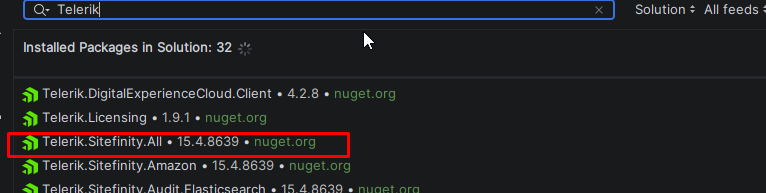
- Install Ucommerce.Sitefinity -Version 9.7.0.23075
- Install Ucommerce.Sitefinity.UI -Version 4.0.7.24087

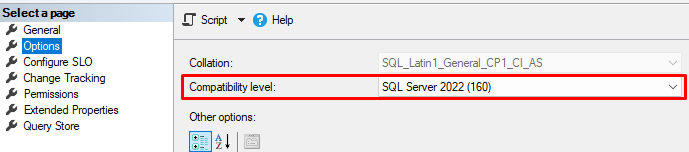
- Set the database compatibility level to 130 or higher if required. Ucommerce’s indexer uses
STRING_SPLIT, which older levels don’t support.
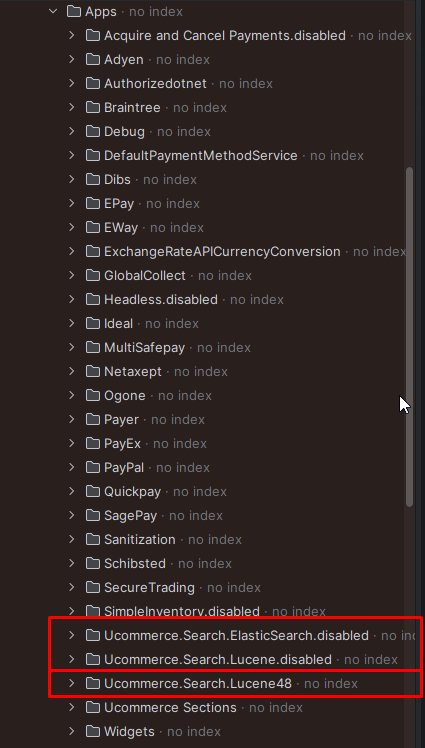
- Download the Lucene 4.8 app from https://github.com/TheSiteDoctor/uCommerce-v9-Lucene48-Overrides-App and copy the Ucommerce.Search.Lucene48 folder into Ucommerce\Apps. Rename Ucommerce.Search.Lucene to Ucommerce.Search.Lucene.disabled.
- Install J2N 2.1.0, then open the
.csprojof the sitefinity CMS project and check the J2N reference. It should read:<HintPath>..\packages\J2N.2.1.0\lib\net462\J2N.dll</HintPath>If it points atbin\J2N.dllor into the Ucommerce package folder, change it.

Note: You can check the file version from the site folder after the solution has been built with(Get-Item bin\J2N.dll).VersionInfo.FileVersion. It should say 2.1.0

- Clear the cached assemblies before starting the site again if it has been ran already before the J2N version has been updated:
%TEMP%\Temporary ASP.NET FilesandApp_Data\TEMP\UcommerceAppsAssemblyShadowCopy. - If an earlier Ucommerce install attempt failed, likely because you ran the site with the incorrect J2N version set in the hint path, which is <HintPath>bin\J2N.dll</HintPath> by default, remove its record in the database using this SQL:
DELETE FROM sf_module_vrsn WHERE module_name = 'UCommerce' AND version IS NULL;
When this has happened, the tell is the error message you may get on boot before removing the module in the database manually
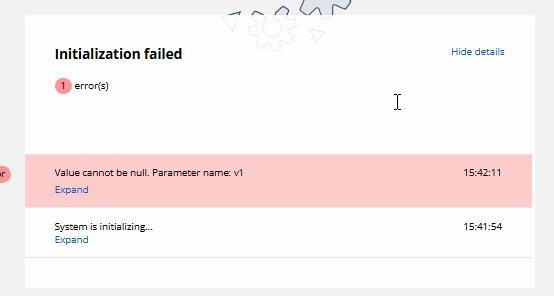
You don’t need to restore the database. The Ucommerce schema is created before the indexing step, so it’s already in place.
- Start the site. If Ucommerce doesn’t install by itself, go to Administration > Modules & Services and install it with the name
Ucommerceand the typeUcommerce.Sitefinity.Module.UcommerceModule, Ucommerce.Sitefinity.

Stop the site and rebuild. If you do not do this, you may see blank pages on the Ucommerce dashboard until the site has been restarted.
That should be all that is needed to get up and runnning.